The map
Draw the boundary and named areas, with their size. Place lamps, bins, benches, gates, play equipment and trees. Say who looks after each area, so residents report to the right organisation.
Estate management companies
One company account holds every site you look after. Residents pin problems and follow them. You plan the year's work from people's skills, hours and holidays, and see in plain English where you are short.
The portfolio
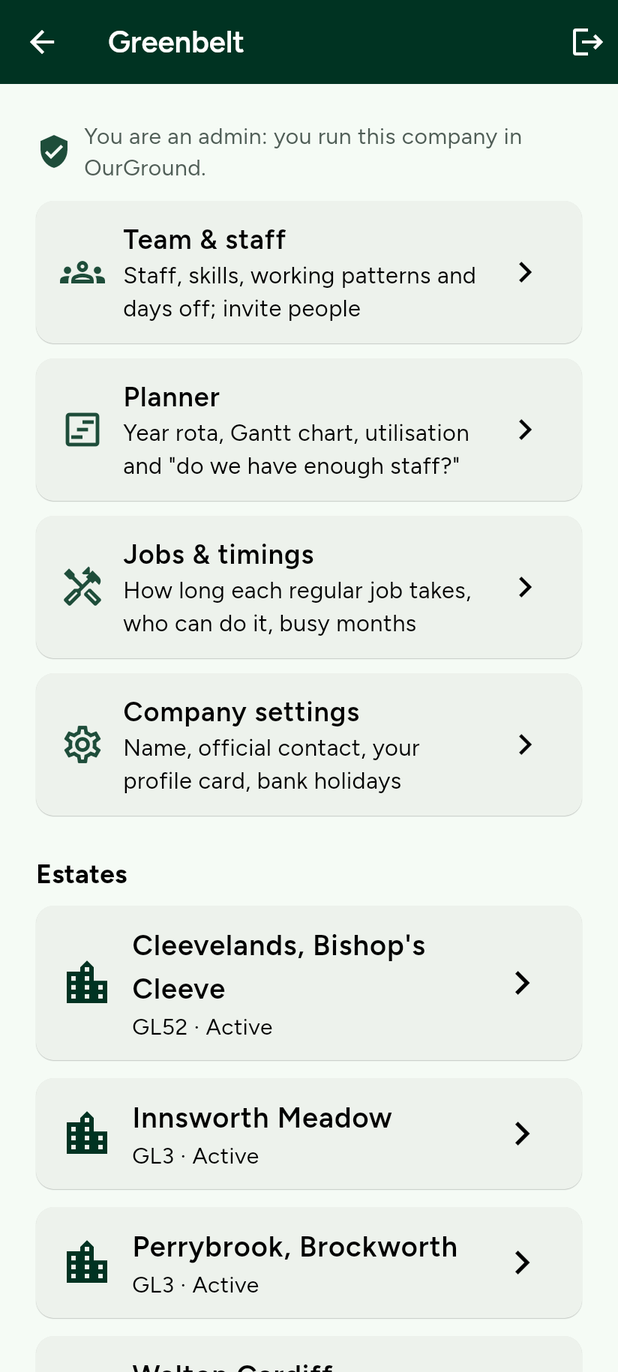
Company home lists the sites you manage, active or lapsed, and the tools that run across all of them. Open an estate for its map, issues and maintenance. The company account itself is free.
Draw the boundary and named areas, with their size. Place lamps, bins, benches, gates, play equipment and trees. Say who looks after each area, so residents report to the right organisation.
The list is most urgent first. Move a report through Seen, In progress and Resolved. A note is required to close it. Book a repair date, see +1s, and export the lot to CSV.
Set your own stages and working-day deadlines. Escalate step by step, flag what is overdue, and refer to the Ombudsman or Tribunal. The history stays as evidence.
Regular jobs per area and point: what, how often, which months. A month-by-month schedule, a board of what is on track or overdue, work logs, and site inspections residents can read.
Info pages for the questions you answer again and again, with maps if you want them. An estate dashboard shows totals, what is still open, and average fix time.
Share a join link, approve residents, and mark local councillors. Appoint an estate admin, or let a trusted resident help draw areas. Neighbours see usernames, not real names.
Staff across sites
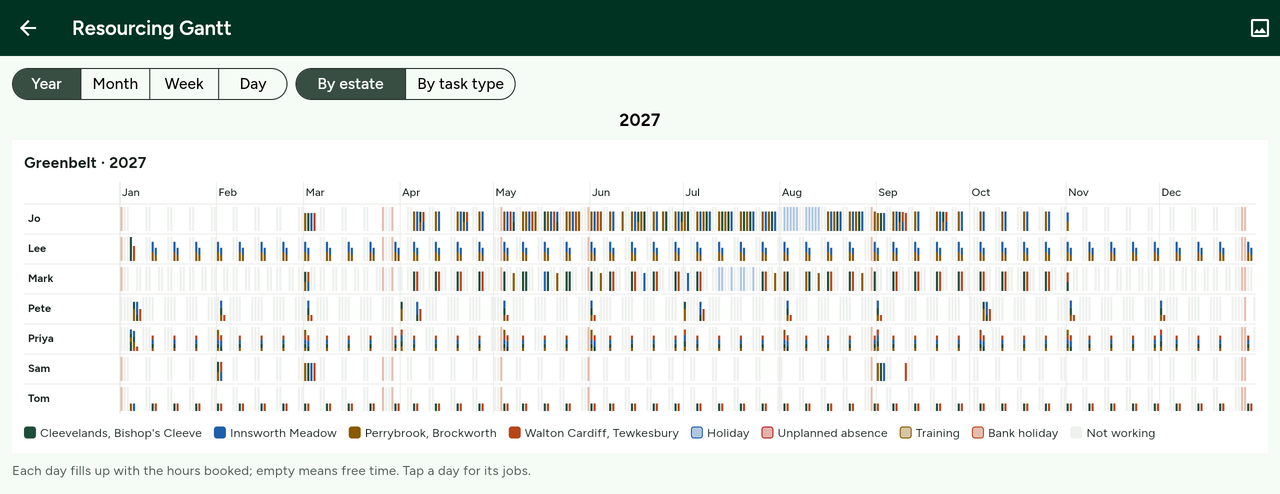
Grass at one estate, bins at another, a lighting check the week after. The planner puts those jobs on the people who can do them, across every estate, for the year. It uses the hours, skills and days off you enter. It does not use AI.
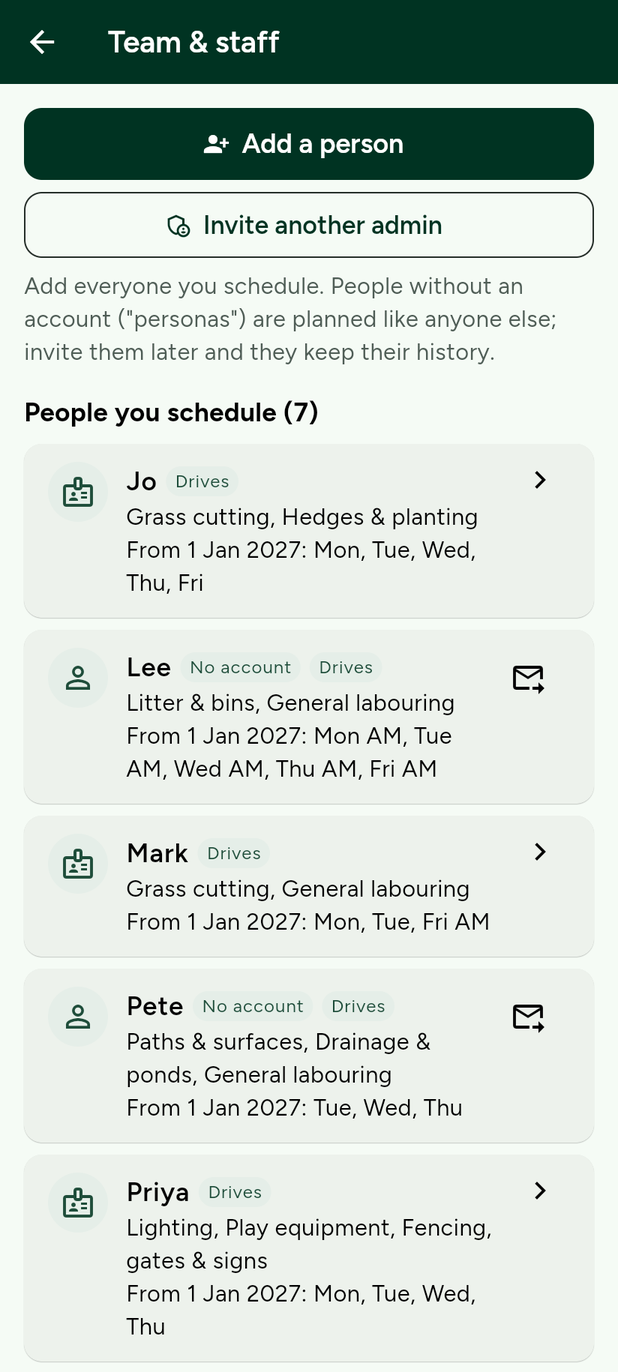
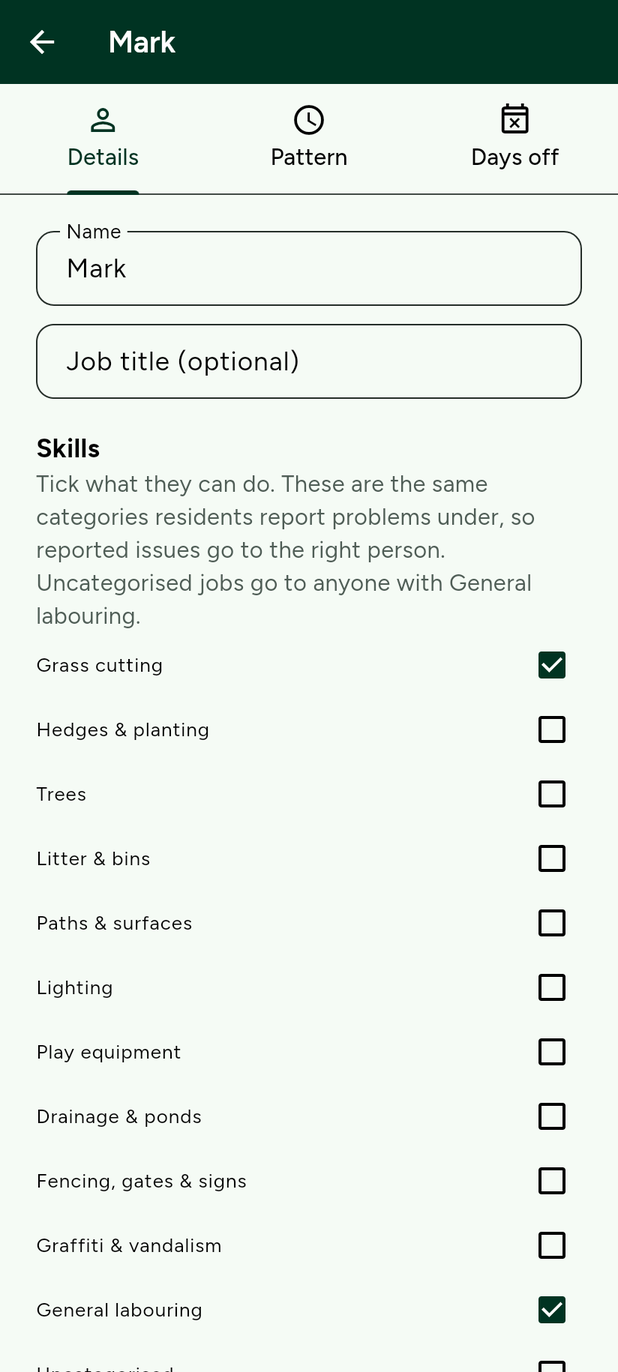
Add each person with skills, whether they drive, their vehicle and licence, home postcode and leave allowance. They do not need an account. Invite them later and they keep their history.
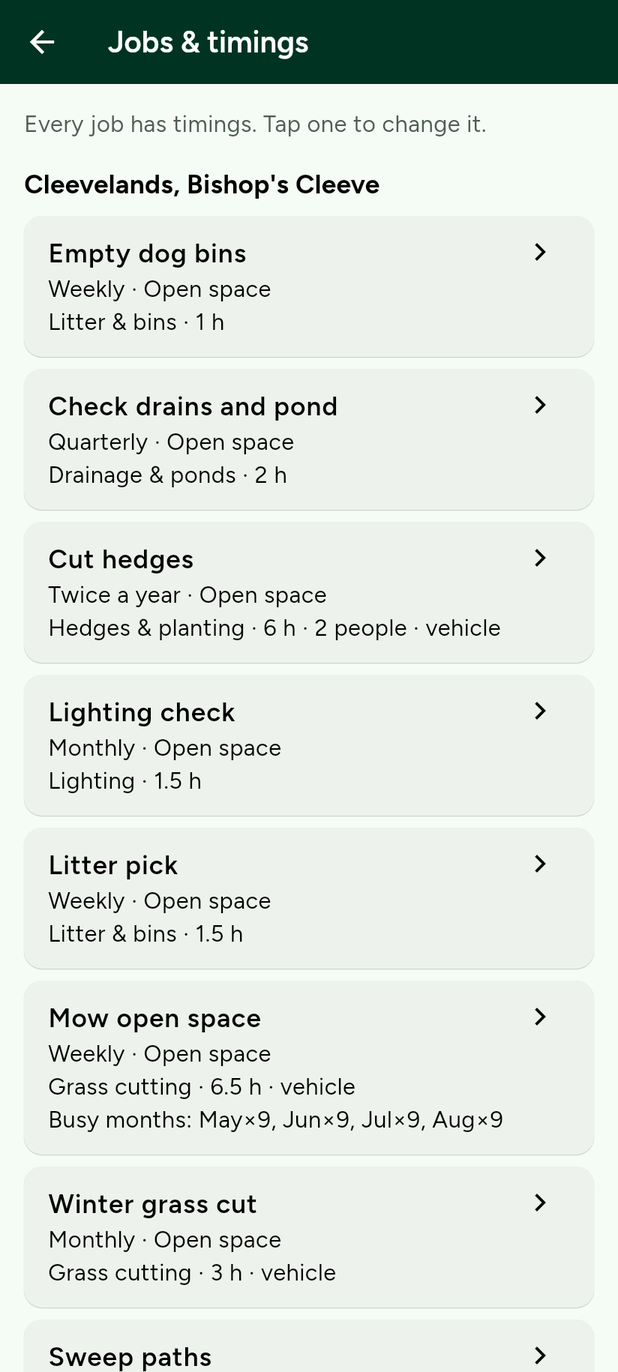
Every regular job on every estate: the skill, the hours, how many people, whether it needs a vehicle, and the busier months. Grass twice a week from May to August is a normal entry.
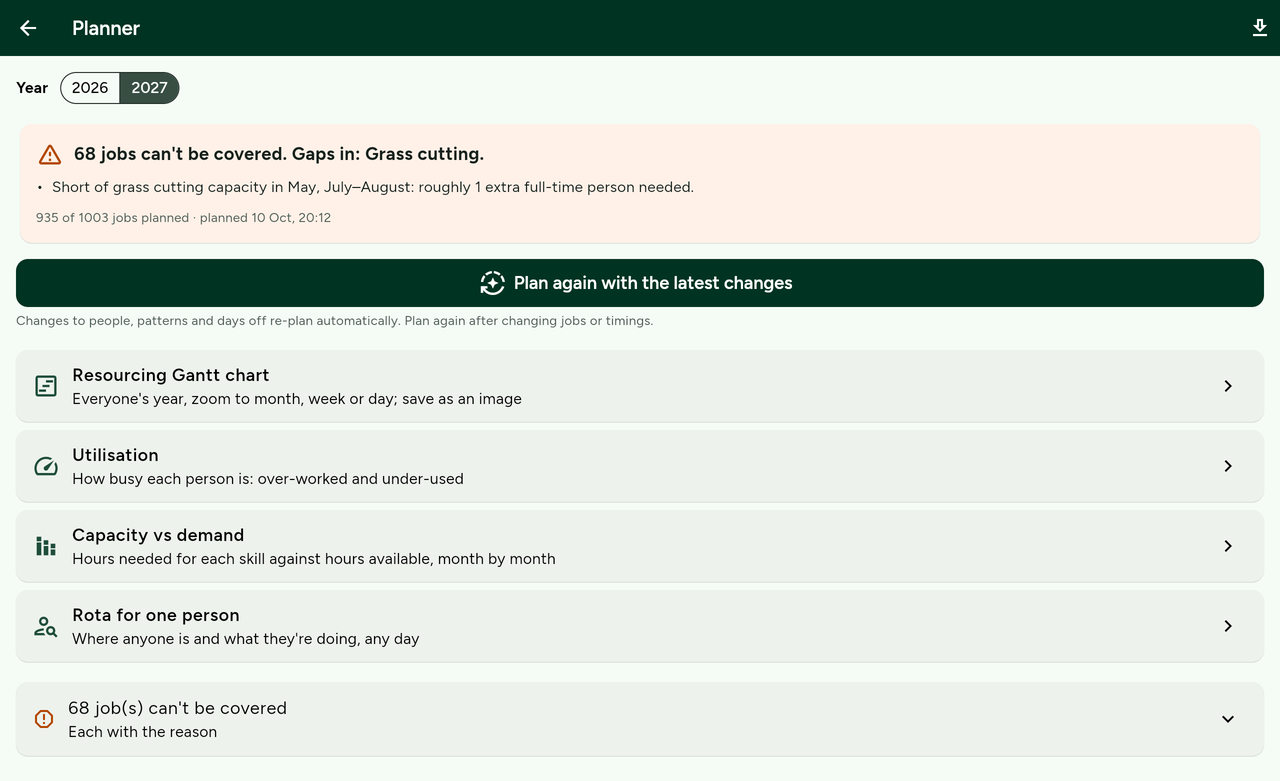
Press Plan. The year is worked out on OurGround's servers. You get a plain-English result, such as a shortfall in grass cutting and roughly how many extra people that is.
Mon–Fri, four days, mornings only, or set each day to full, morning, afternoon or off. A pattern starts on the date you choose, so a mid-year change keeps the earlier history.
Tap a day, then drag to the last day. Holiday, sick, training or other, including half days. Bank holidays in England and Wales are already off. Leave is counted against the allowance.
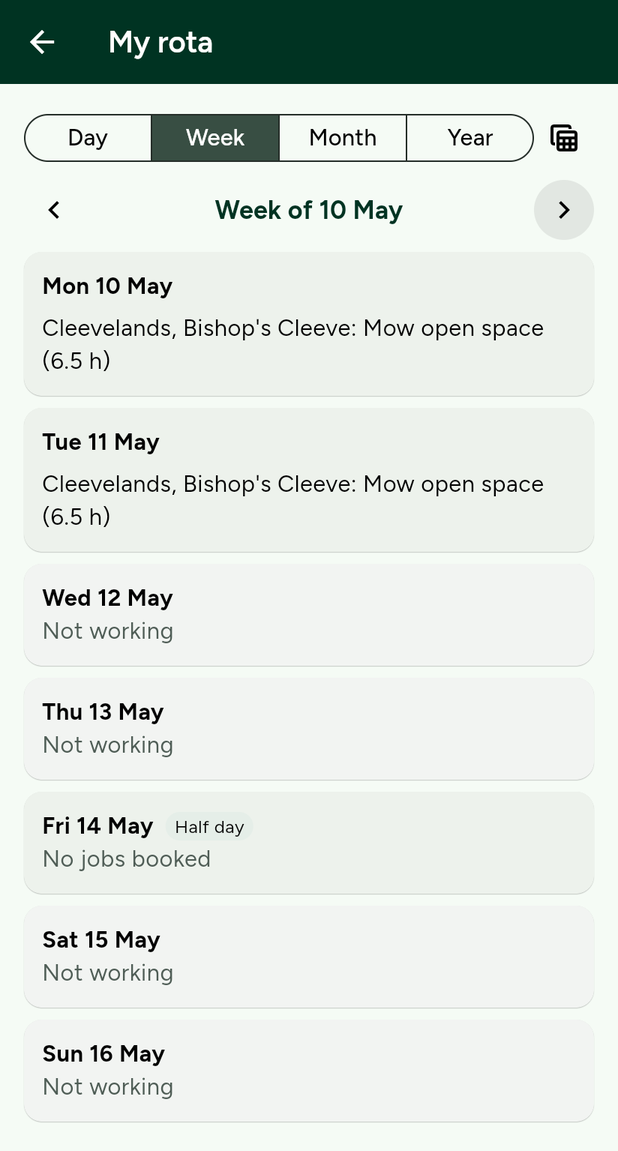
Hours needed for each skill against hours your team can give, month by month. A separate rota shows any one person, any day, by day, week, month or year.
An open resident report is planned for someone with the right skill, inside 1, 5 or 15 working days depending on how serious it is. Jobs that cannot be covered are listed with the reason.
Mark bank holidays you work anyway, and closure days such as snow. Company settings also hold your name and the official contact shown on staff cards.
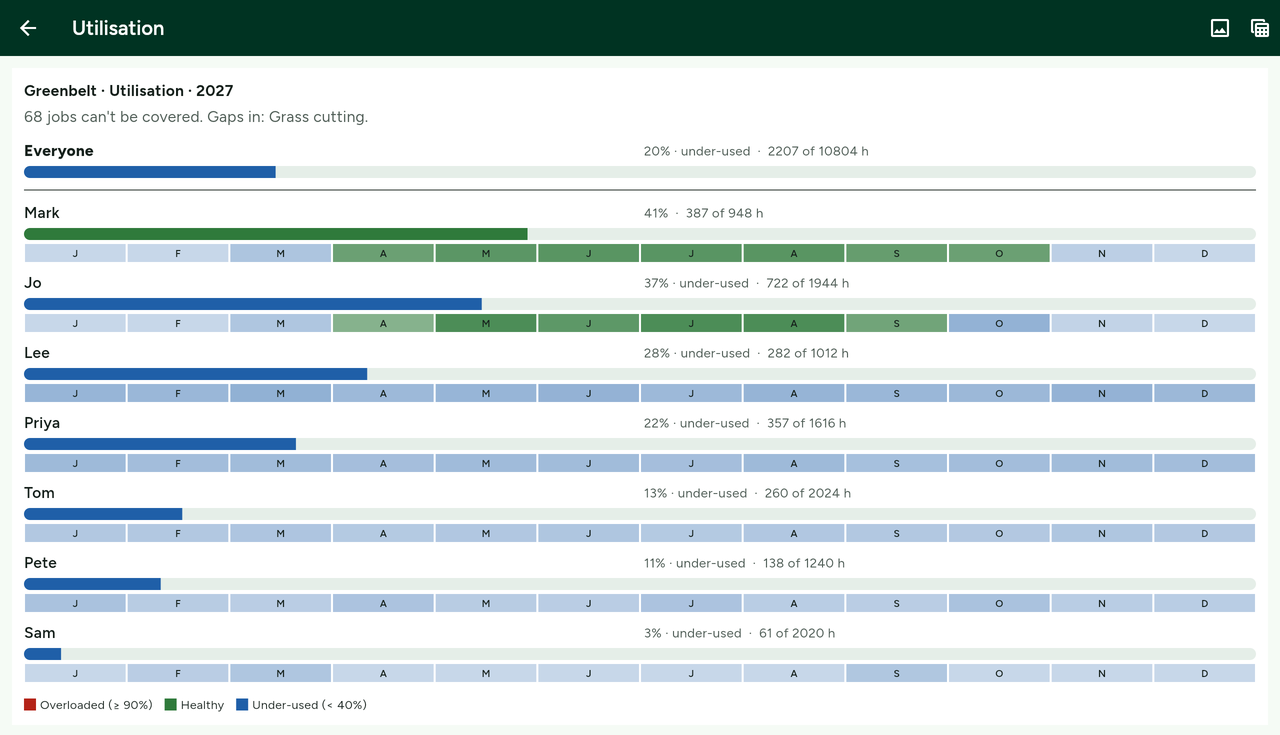
Download the year, utilisation, capacity and uncovered jobs as CSV for Excel or Google Sheets. Download a person's rota the same way. Charts save as images.
On the ground
A worker opens the company's estates the way a resident does: map, issues, maintenance and information. They can report a problem and add a +1. Next to their name is a company badge. Tap any name for a short card.
Admins run the company: estates, the planner, jobs and settings. Staff on the ground get My rota and the estates. You can invite another admin, turn a person from staff into admin, or remove someone. Their past rota stays.
A resident's card says Resident, and the estate. A staff card says they work for your company and names your official contact. An admin's email is a link only if that admin switched it on. It is off by default.
Private by design
Another management company cannot see, list, change or export your staff, patterns, rotas or charts. Residents' real names, emails and phone numbers are never shown to your team. Only OurGround can see those, for account support.
Not in the product yet: email alerts when a report moves, photo uploads, in-app messages, and a calendar feed for rotas. People see progress when they open OurGround. Photo uploads are built and waiting to be switched on.