Estate management companies
Draw the map
Residents report against the map you draw. Outline each area by tapping its corners, say who looks after it, then drop the points that matter.
-
Open the estate map
From your company, open the estate. You land on Map, the same view residents see, with an extra button: Add estate boundary or point.
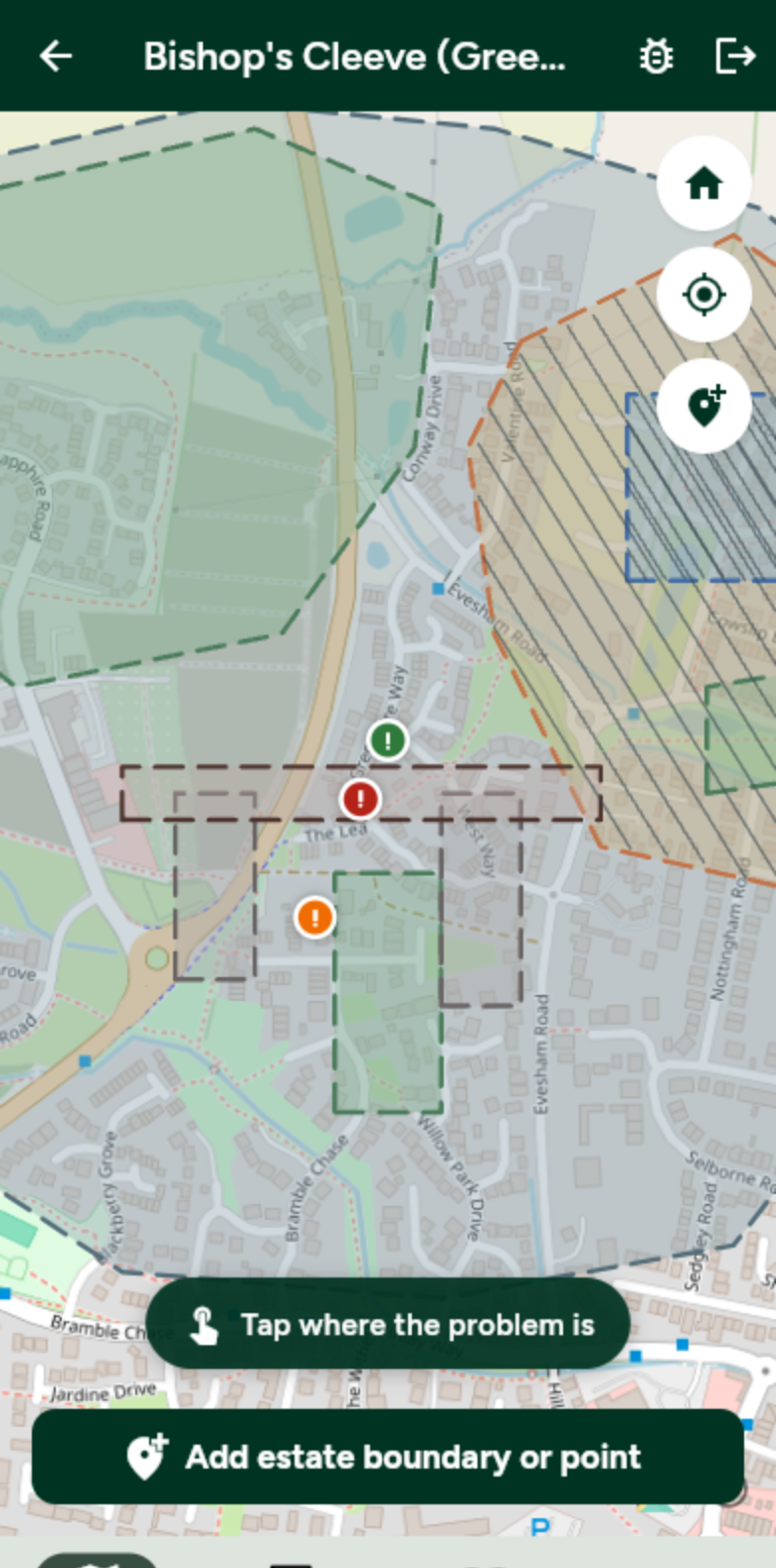
Zoom in on the area you want to draw first. -
Choose Boundary
Tap Add estate boundary or point, then Boundary. Use a boundary for the whole estate, or for any area inside it: open space, a play area, a road.
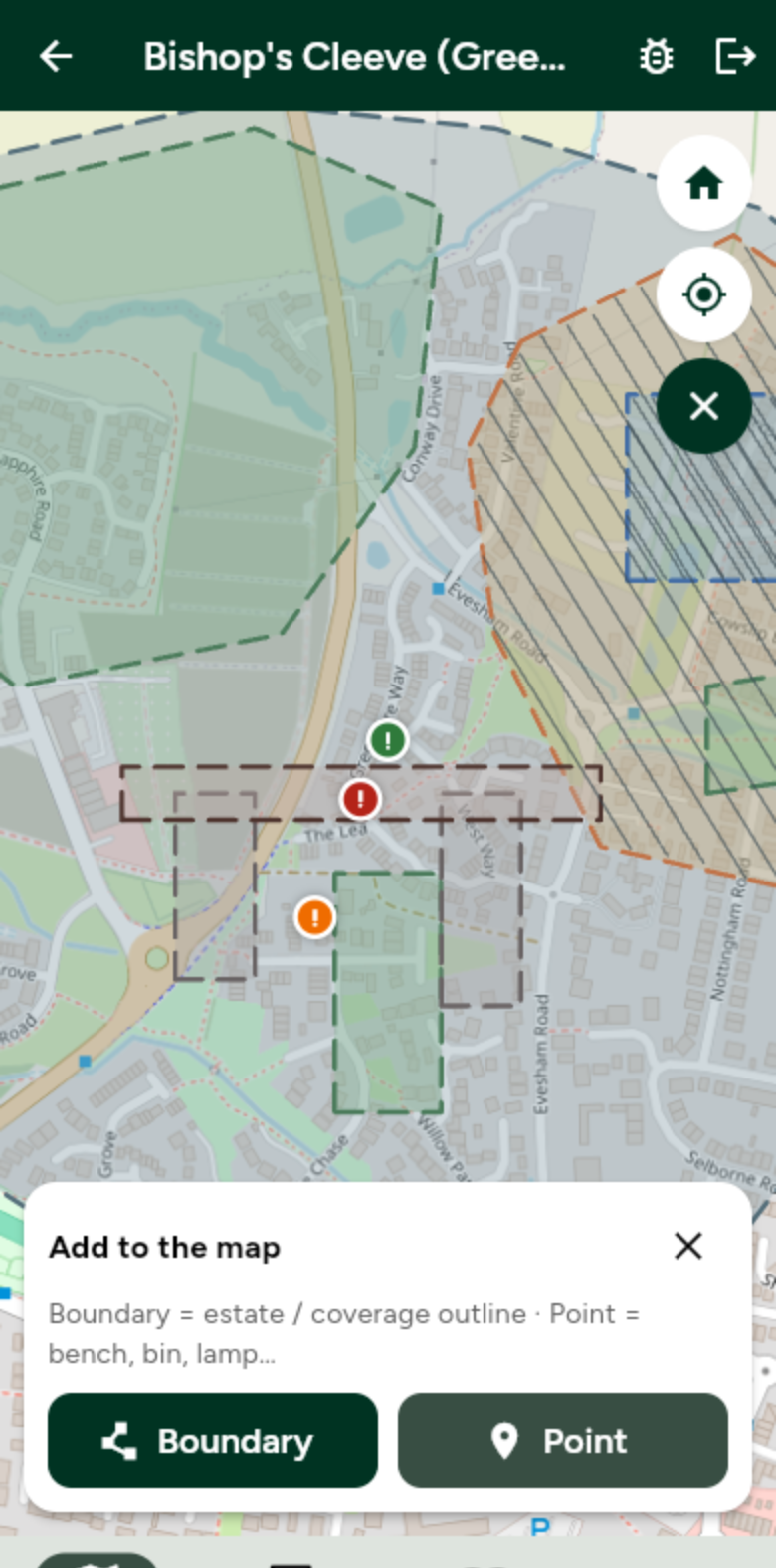
Boundary outlines an area. Point places one item. -
Tap the corners
Tap each corner in turn. A line joins them up as you go, and the size is shown in hectares and square metres. Made a mistake? Tap Undo.
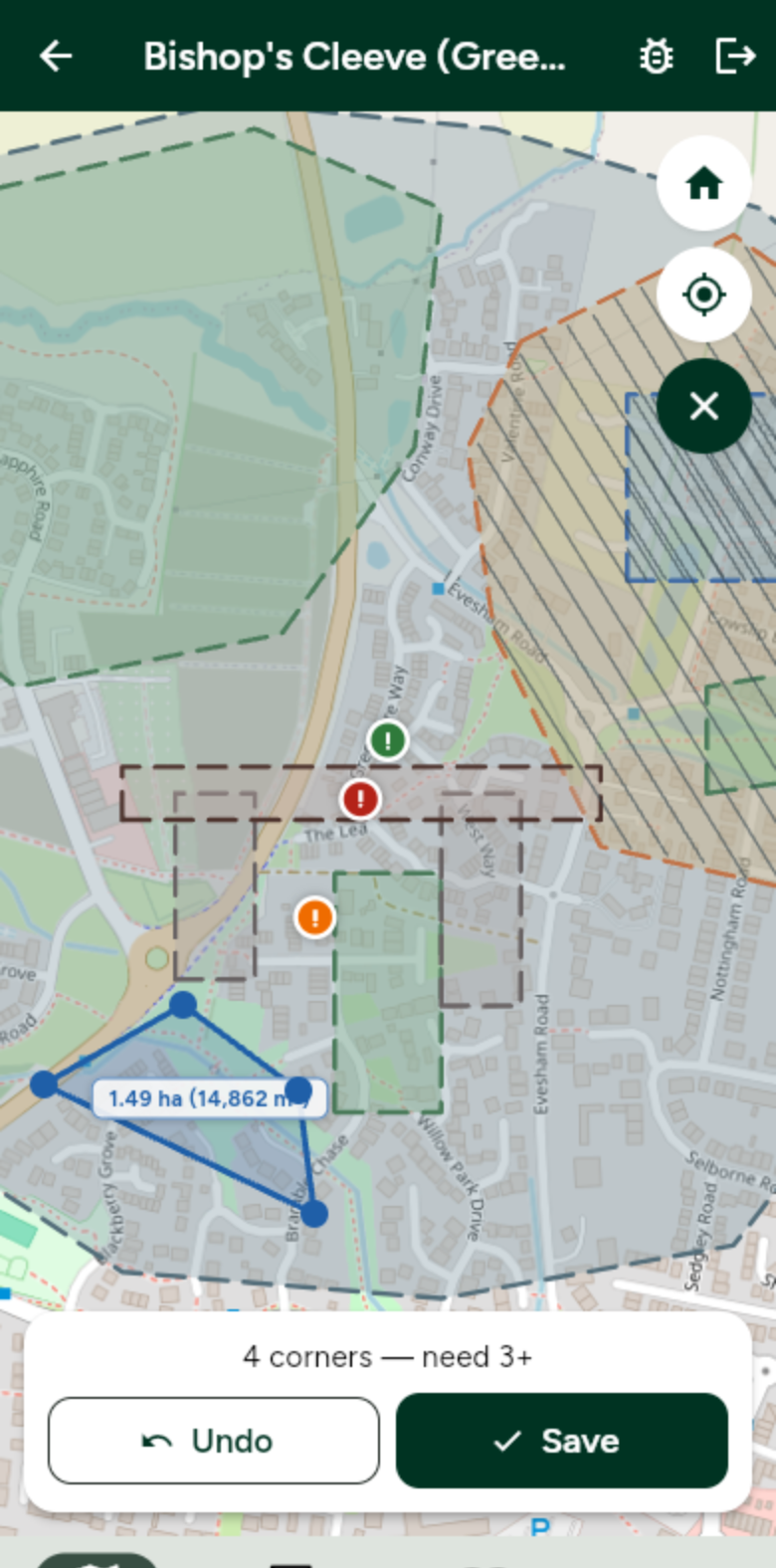
Four corners in: the outline follows your taps. 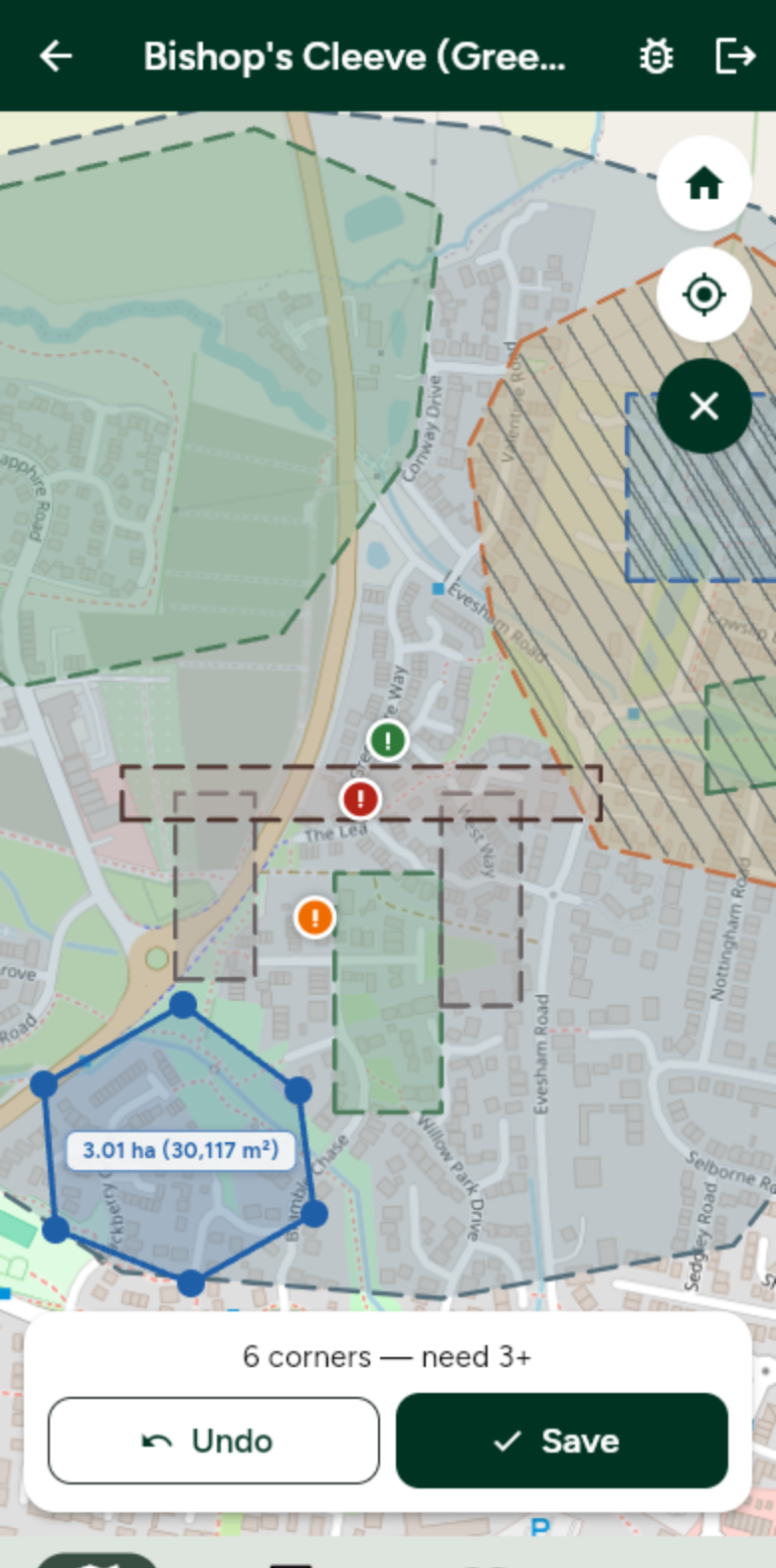
Keep going until the shape is right, then tap Save. -
Say what it is
Choose Boundary or Area, give it a name, pick the area type (grass, paths, play and so on), and say whether it is covered by your contract. Add who manages it if it is not you.
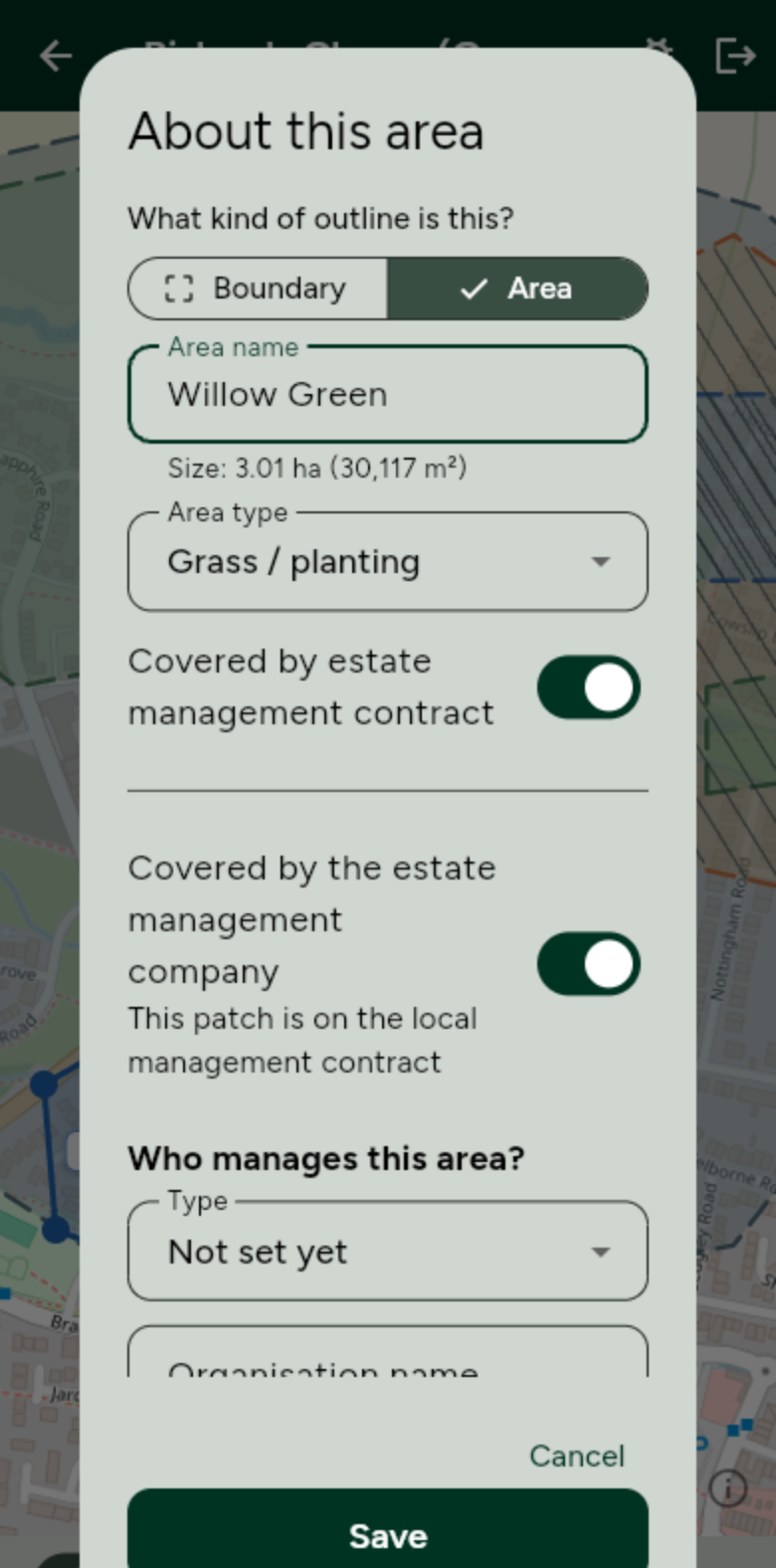
Residents see the name and who manages it when they tap the area. -
Save it
Tap Save. The area appears on the map for everyone on the estate. You can edit its corners or rename it later.
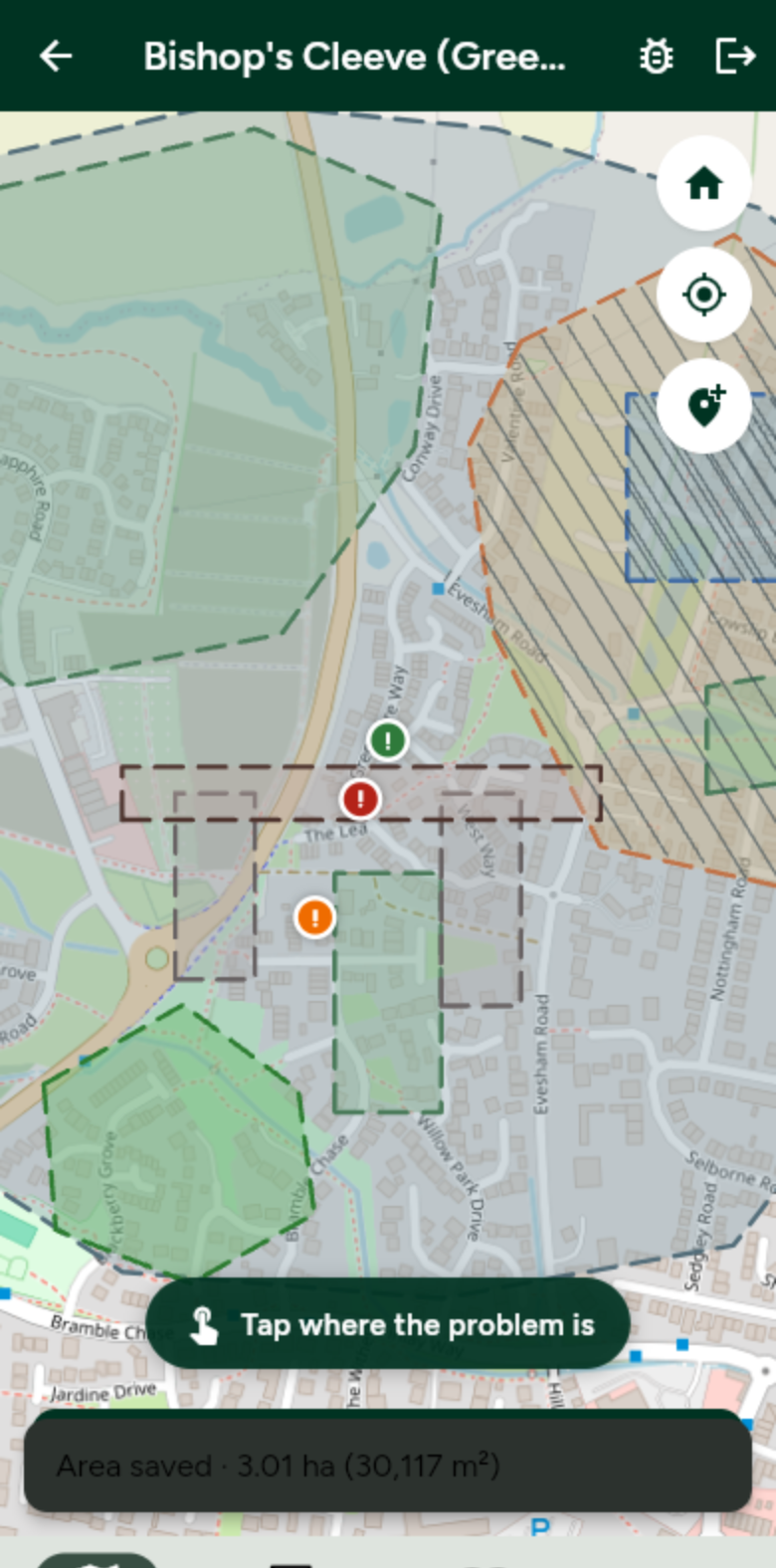
Saved. The new area is now part of the estate map. -
Place lamps, bins and other points
Tap Add estate boundary or point, then Point. Pick what it is (a lamp post, bin, bench and more) and tap the map where it is. Add a name or a note if it helps.
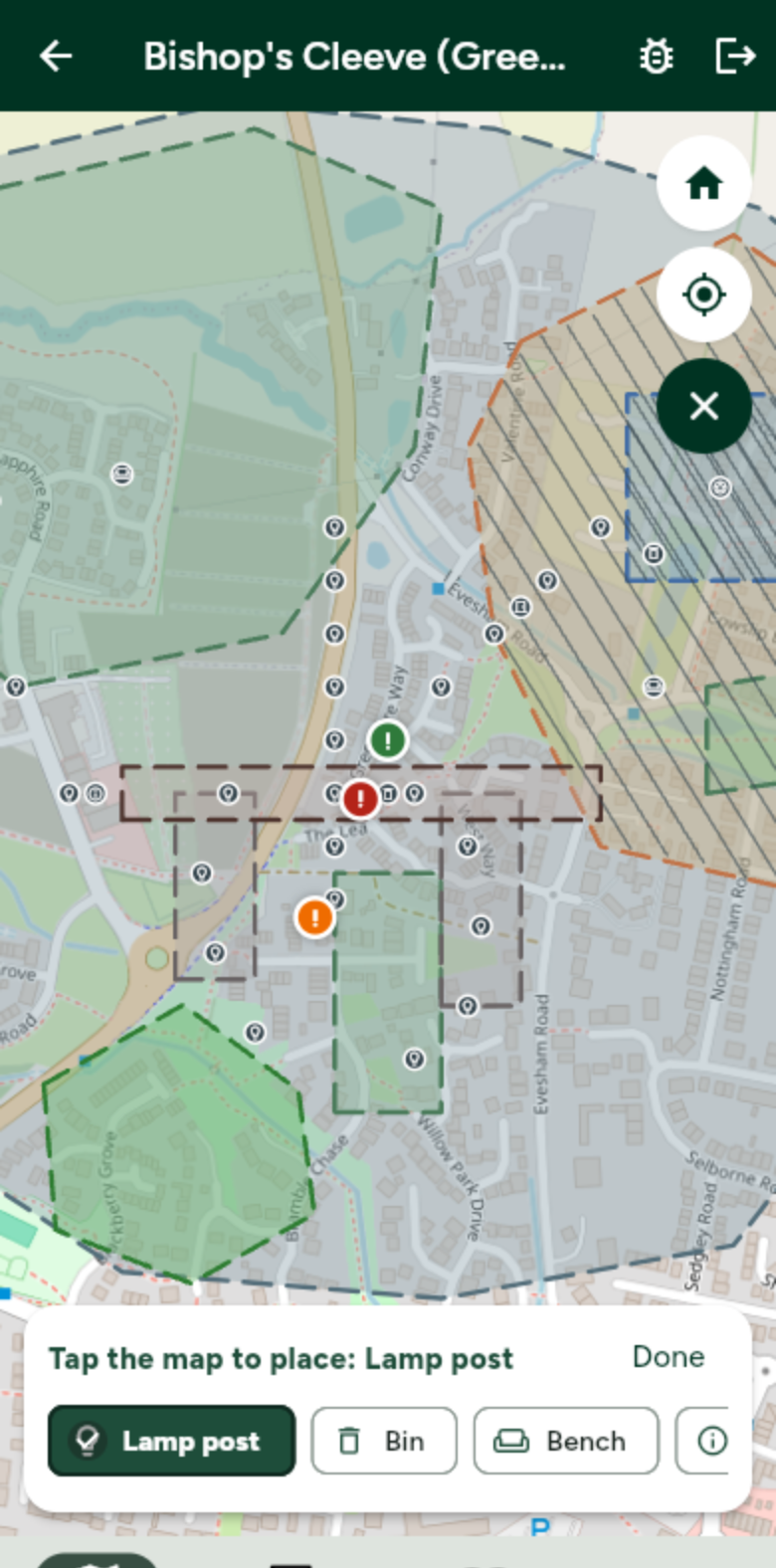
Pick the type, then tap its spot on the map. 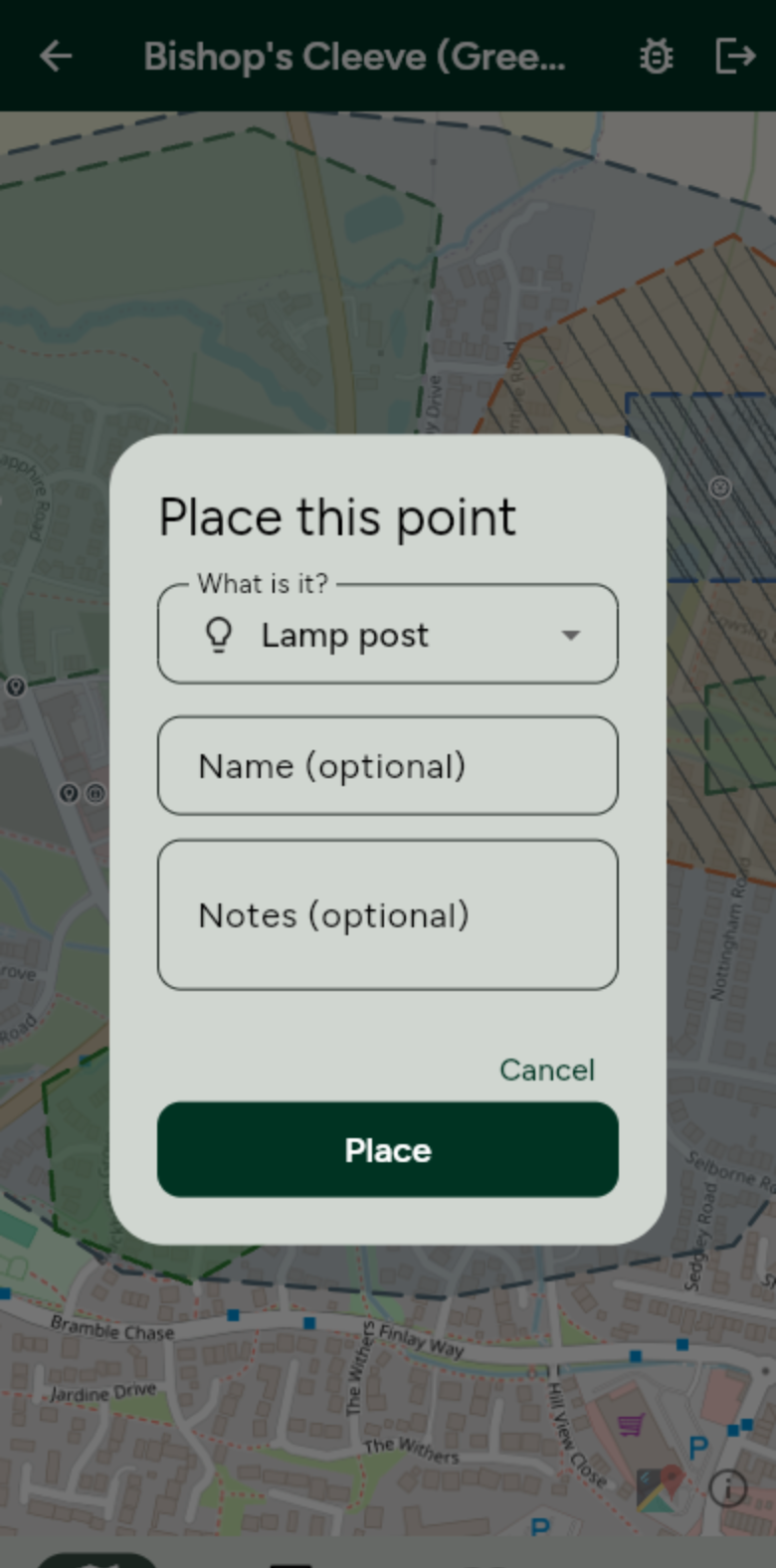
Tap Place. Residents can now report a problem against that exact item.