Estate management companies
Getting started: your road map
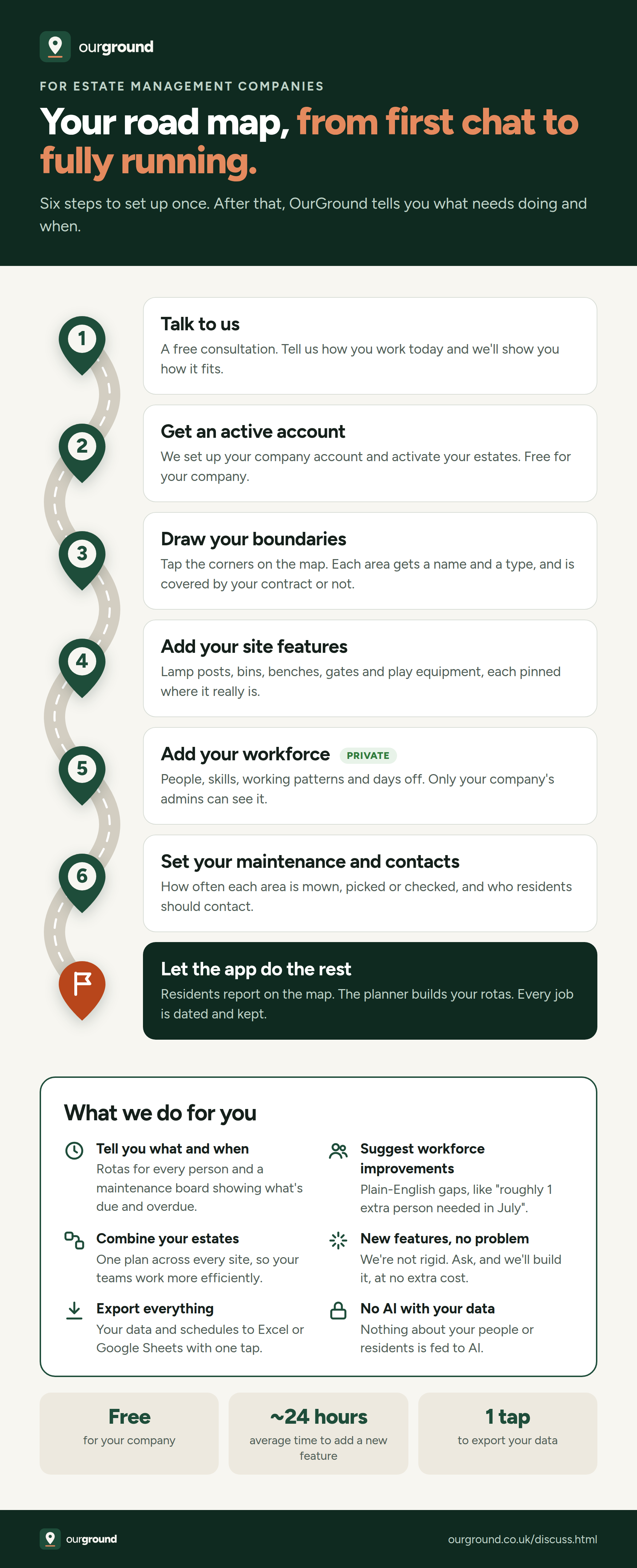
Six steps to set up once. After that, OurGround tells you what needs doing and when, so your team can get on with the work.
-
Talk to us
Book a free consultation. Tell us how you work today: your estates, your team, how residents reach you. We show you how OurGround fits, on one of your own sites.
-
Get an active account
We set up your company account and send you an invite to run it. Add each estate with its name and postcode, then activate it. The company account is free.
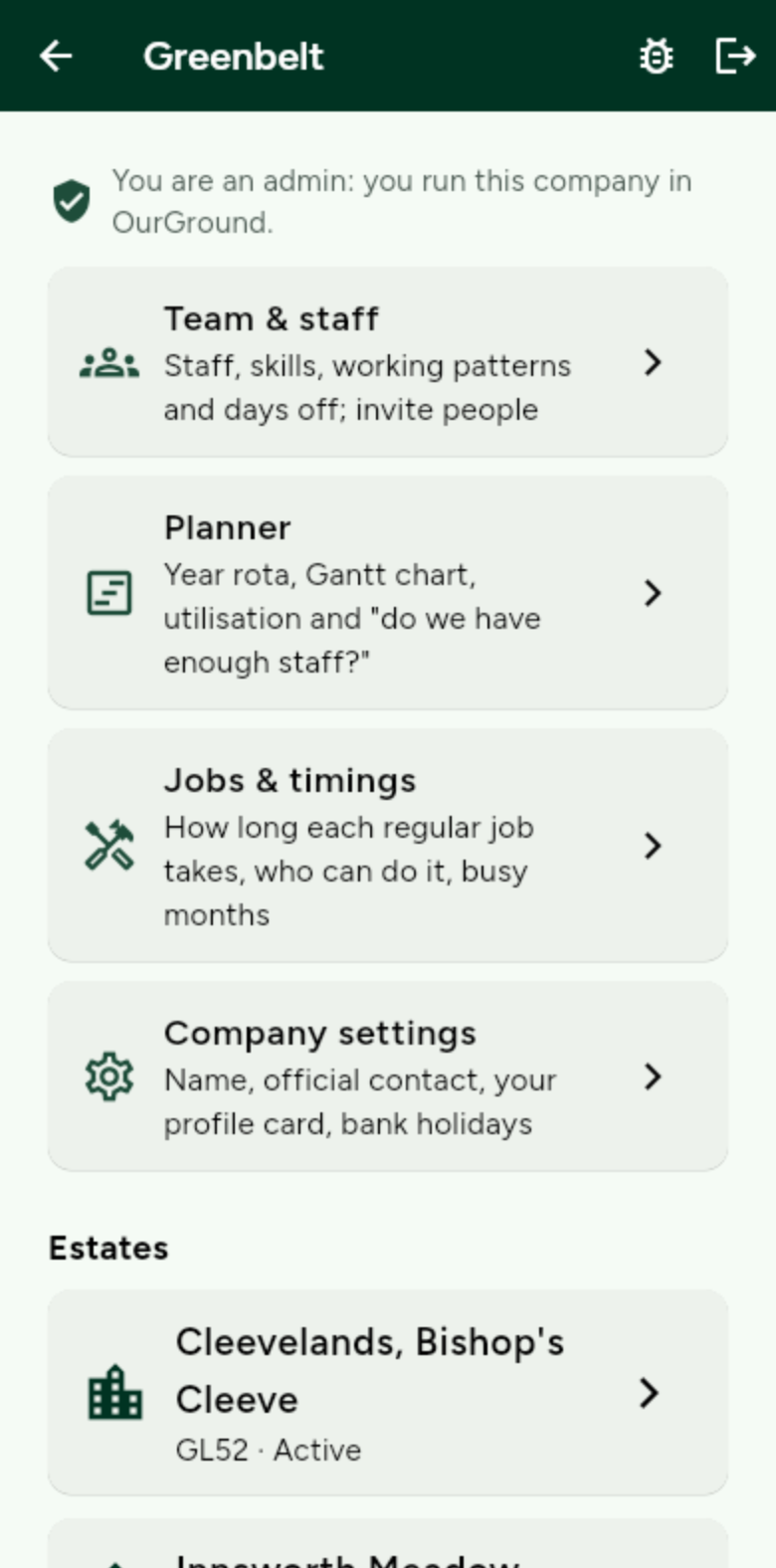
Your company home: your team, the planner and every estate in one place. 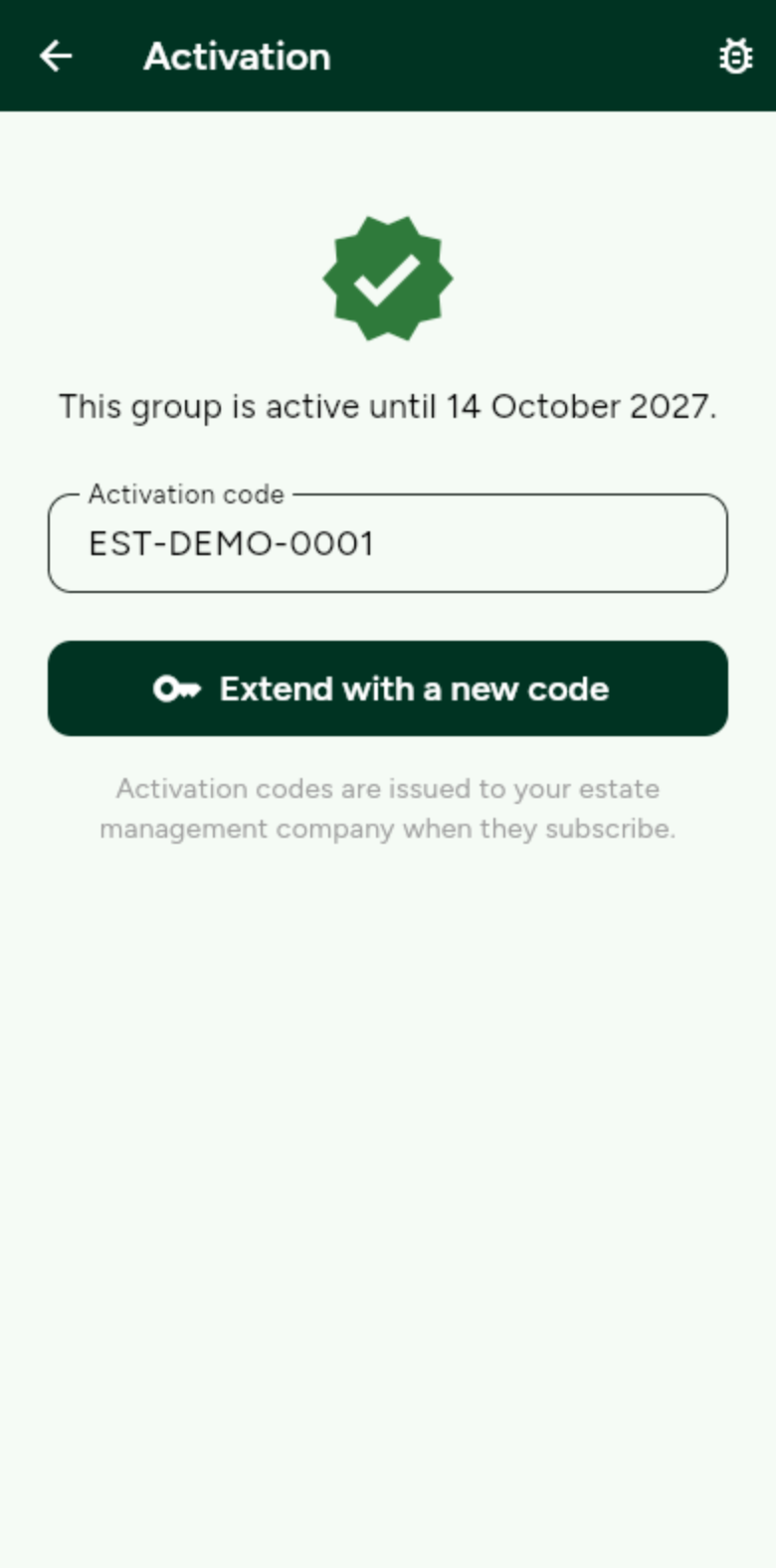
Each estate shows how long it is active for. Extend it with a new code. -
Draw your boundaries
Open the estate map and tap the corners of each area: the estate boundary, open space, play areas, roads. Name each one and say whether it is on your contract. How to draw the map.
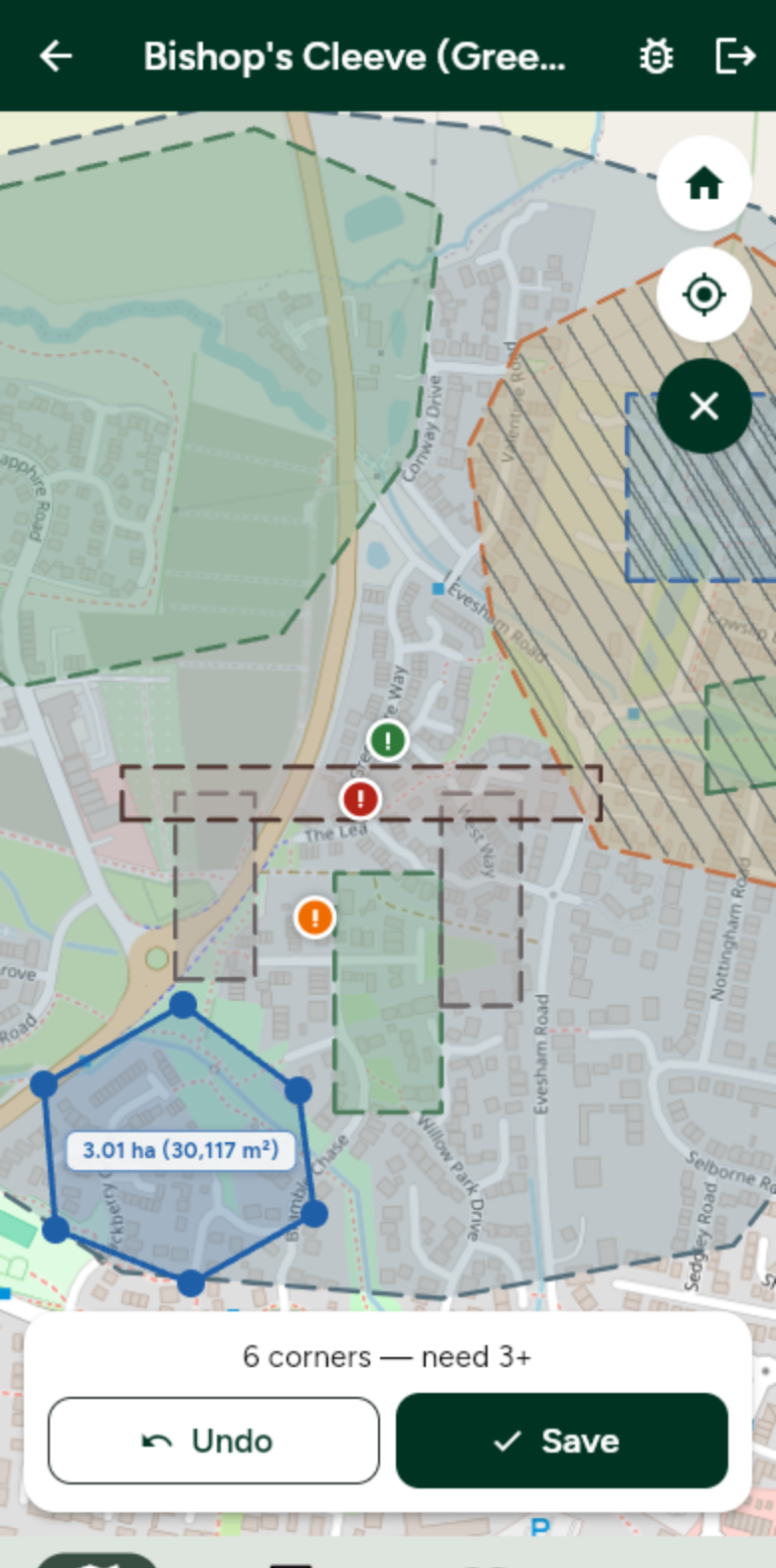
Tap the corners. The size is worked out as you go. -
Add your site features
Drop lamp posts, bins, benches, gates and play equipment where they really are. Residents can then report a problem against the exact item.
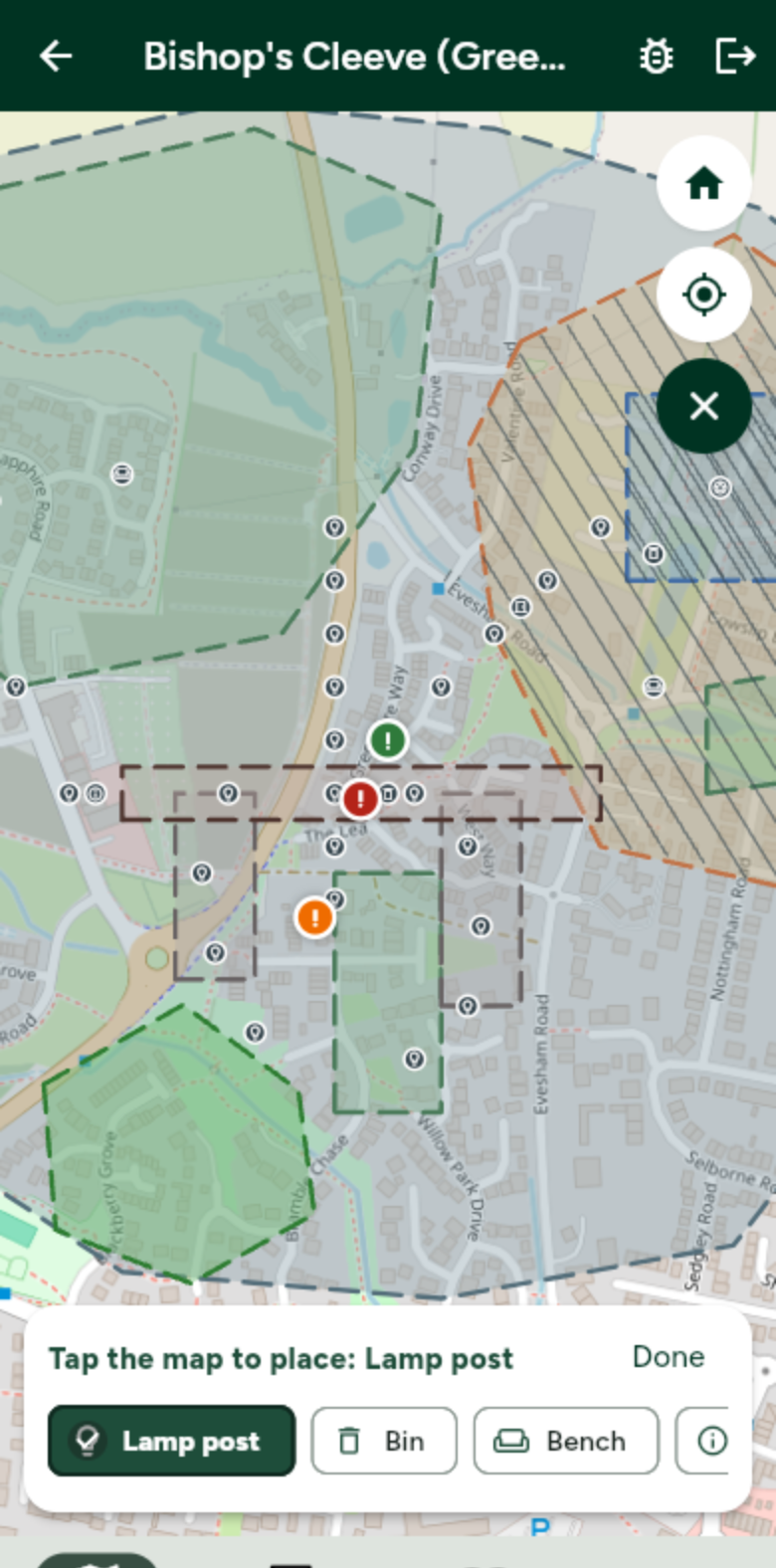
Pick what it is, then tap the map to place it. -
Add your workforce (this is private)
Add your people with their skills, working patterns and days off. People without an account can still be planned, and invited later. Only your company's admins can see any of it. Add your team.
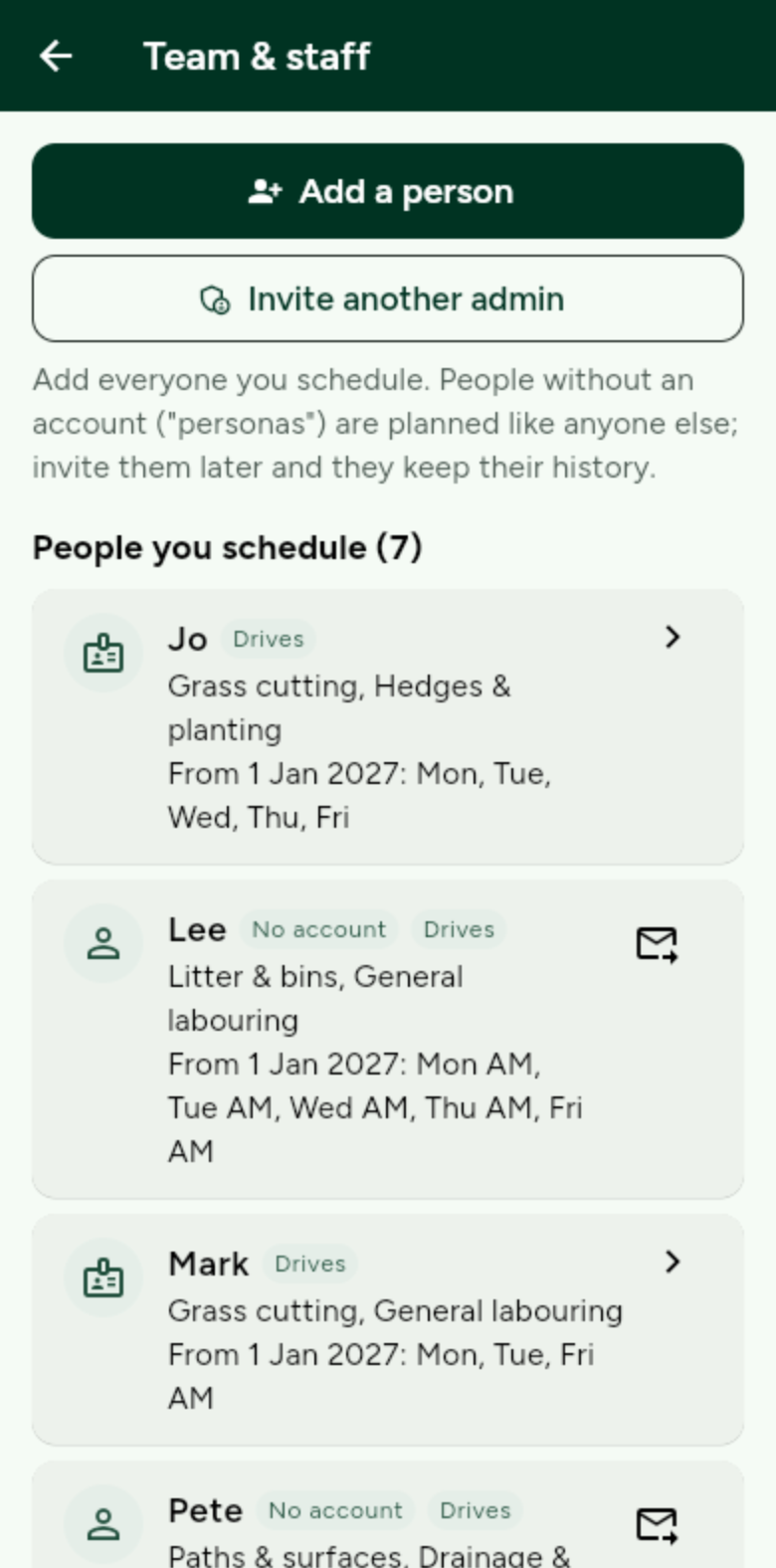
Everyone you schedule, with what they can do and when they work. -
Set your maintenance schedule and contact details
Say how often each area is mown, picked or checked, and which months are busier. Set who residents should contact for each area, and your company's official contact. Plan maintenance.
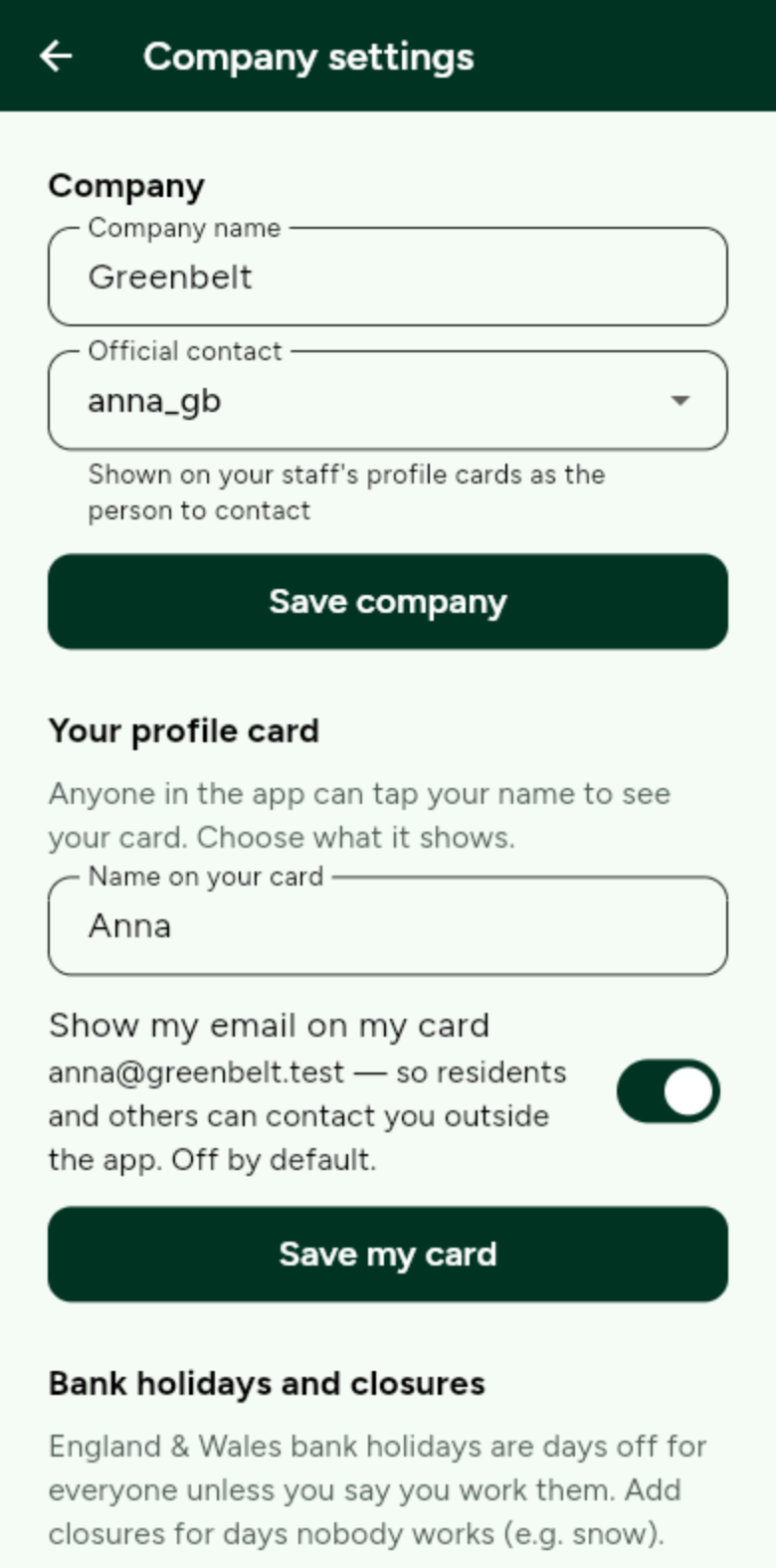
Your official contact appears on your staff's profile cards. -
Let the app do the rest
Residents report on the map. Reports become jobs for someone with the right skill. The planner builds every rota across all your estates and tells you where the gaps are. Every step is dated and kept.
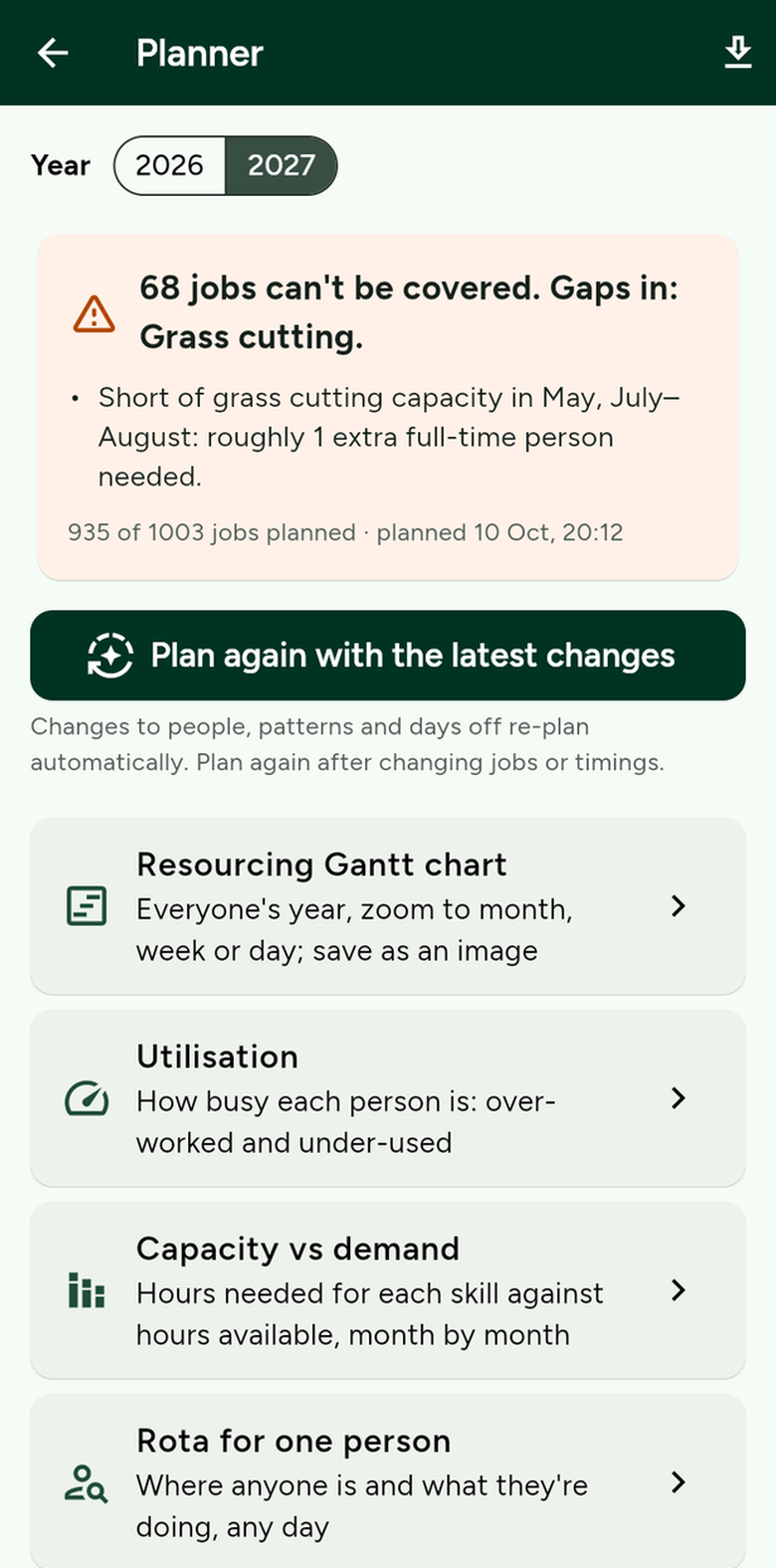
Plain English: where you are short, and roughly how many people you need.
What we do for you
- We tell you what to do, and when. Every person gets a rota, and the maintenance board shows what is due and overdue.
- We suggest workforce improvements. The planner says in plain English where you are short, and by roughly how many people.
- We combine your estates. One plan across every site you manage, so your teams work more efficiently.
- Want a new feature? No problem. We are not rigid, and we are here to help. On average we add new features within 24 hours, at no extra cost.
- Export everything with one tap. Your issues, schedules, rotas and plans, ready for Excel or Google Sheets.
- No AI with your data. Nothing about your people or your residents is fed to AI.